How to Fix Packet Loss?
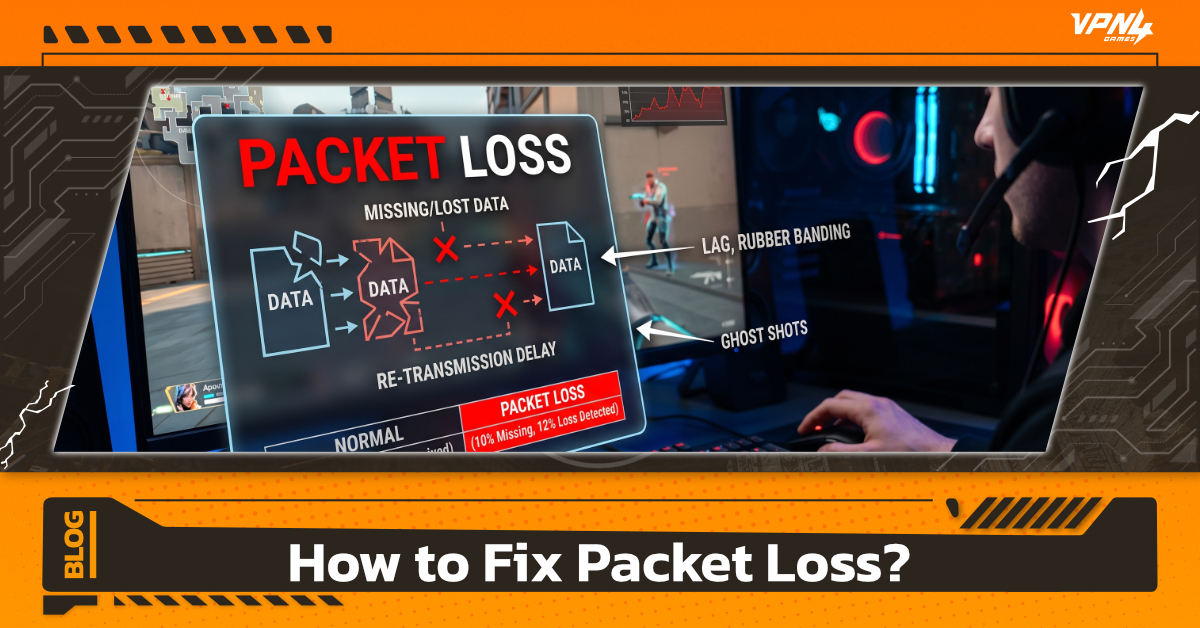
Have you ever upgraded your home internet to a blazing-fast Gbps package or invested in a high-end router worth tens of thousands, only to find your character "warping" around like you're on 90s cybercafe internet? Or maybe your voice chat cuts out unexpectedly, even though your Speedtest shows the needle hitting the max?
The issue here isn't about "speed"—it’s Packet Loss hiding within your data stream. In this article, we’ll take a deep dive to explain exactly what Packet Loss is, its real root causes, and a comprehensive guide on how to fix Packet Loss for good. It’s time to ensure every click and every move in your game is perfectly precise.
What is Packet Loss? Why is your internet fast but still lagging?
Packet Loss is a condition where data packets sent over the internet fail to reach their destination or get lost along the way. Think of it like ordering 10 boxes of products, but the shipping company loses 2 of them, leaving you with an incomplete delivery. In gaming, these small units of data (called "Packets") sent from your computer to the game server go "missing" mid-transit. It’s like driving a high-end sports car (fast internet) on a modern highway, but the road is suddenly full of gaps, causing cars to fall into the abyss and never reach the finish line.
The difference between Ping and Packet Loss is:
- Ping (Latency): Refers to delay. The data reaches its destination, but it takes longer than usual.
- Packet Loss: Refers to data that disappears entirely. This forces the system to spend time resending the information (Retransmission), resulting in immediate stuttering, "warping," or total disconnection.
What Causes Packet Loss? 5 Main Reasons Your Internet Lags
1. Wi-Fi Signal Interference
This is the #1 cause for general users. Wi-Fi radio waves are easily disrupted by obstacles like thick walls, electronic appliances (such as microwaves), or even overlapping signals from a neighbor’s Wi-Fi using the same channel.
- Symptoms: Frequent disconnections or spikes in Packet Loss as you move further away from the router.
2. Hardware Issues
All networking equipment has a limited lifespan. Whether it’s a router left on 24/7 that begins to malfunction due to heat buildup, or an Ethernet (LAN) cable that is bent internally—causing the copper wiring to fray—these issues lead to unstable data transmission.
- Key Indicator: If you replace your LAN cable with a new one and the problem disappears, it’s definitely a hardware issue.
3. Network Congestion
When too many people use the bandwidth simultaneously on a single network, data "queues up" for too long. If the router cannot process it fast enough, it will decide to "drop packets" to clear the congestion.
- In-game Symptoms: Rubber Banding – You run forward but get snapped back to your previous position because your latest location data failed to reach the server.
4. Software Bugs & Firewall
Sometimes the problem isn't the cable but the "gatekeeper." A strict Firewall or Antivirus might mistake data packets from a game or a video conference app as a threat and block them. This also includes outdated LAN card drivers on your computer.
- Solution: Try temporarily disabling your Firewall to test if it’s the root cause.
5. ISP & Routing Problems
If everything inside your home checks out fine, the issue might be with external "infrastructure." This could range from a local node failure in your area to inefficient Routing by your ISP to the destination server (such as an overseas game server).
- How to Check: ISP issues usually affect multiple users in the same area or occur specifically when connecting to international servers.
How to Perform a Packet Loss Test: Identifying the Root Cause
Before jumping into fixes, you should perform a Packet Loss test to confirm whether the issue truly stems from your own network.
Use the Command Prompt (CMD)
Open CMD and type the command ping -t 8.8.8.8 (this tests your connection with Google's server). Let it run for a moment, then press Ctrl + C to view the statistics. If the "Lost" section shows a value greater than 0%, it is a clear sign that your internet connection has a problem.
Use Online Testing Websites
You can visit Packetlosstest.com for a more detailed analysis of your signal stability. To get the most accurate results, make sure to select the server located closest to Thailand (such as Singapore or Asia).
How to Fix Packet Loss: 6 Most Effective Solutions
1. Switch from Wi-Fi to an Ethernet (LAN) Cable
This is the best solution for gamers. Using a LAN cable (Cat6 or higher is recommended) significantly reduces signal interference and ensures nearly 100% data transmission stability.
2. Close Background Programs Consuming Bandwidth
Check your Task Manager and close any applications secretly using the internet, such as Windows Update, Steam Auto-update, or BitTorrent clients. This helps reclaim bandwidth for your primary use.
3. Restart and Update Router Firmware
Try turning off your router for 5–10 minutes to allow it to cool down. Additionally, check for recent firmware updates from the manufacturer to fix potential data transmission bugs.
4. Perform a DNS Flush
Clear out cached network data in your system by opening CMD and typing ipconfig /flushdns, then hit Enter. This forces your computer to refresh its network paths for a cleaner connection.
5. Adjust In-Game Network Settings
For gamers, packet loss is a critical issue. In games like Valorant, try going to Settings > General > Network Buffering and set it to Moderate or Maximum. This allows the game to pre-buffer data, effectively reducing "teleporting" or rubber-banding.
6. Contact your ISP or Use a VPN
If all else fails, the issue might be with your ISP's routing. Using a high-quality VPN can help re-route your data, bypassing problematic nodes and providing a smoother path to the server.
Packet loss is closer than you think, and it doesn't always mean your internet is slow. Instead, it’s all about the "quality" and "stability" of your data transmission. Regularly checking your hardware, switching to a LAN cable, and limiting bandwidth usage during peak hours are the fundamentals that will help you return to smooth gaming and seamless work.However, in many cases, the problem doesn't always originate from your home devices. If the root cause lies in your Internet Service Provider's (ISP) routing sending data through inefficient global paths or issues with connections to overseas game servers, no matter how many times you replace your router, the problem will persist.
The easiest and most effective shortcut is using a dedicated tool like VPN4Games Specifically designed for gamers, it optimizes your data path to be shorter and more stable. This effectively reduces Ping and fixes ISP-related packet loss. Whether you're playing Valorant, Dota 2, or any other title, you can be confident that every data packet will reach the server with absolute precision.
Additional recommended articles
How to Reduce Ping for Smooth Online Gaming
What is VPN4Games ? Why No.1 for gamers ?